
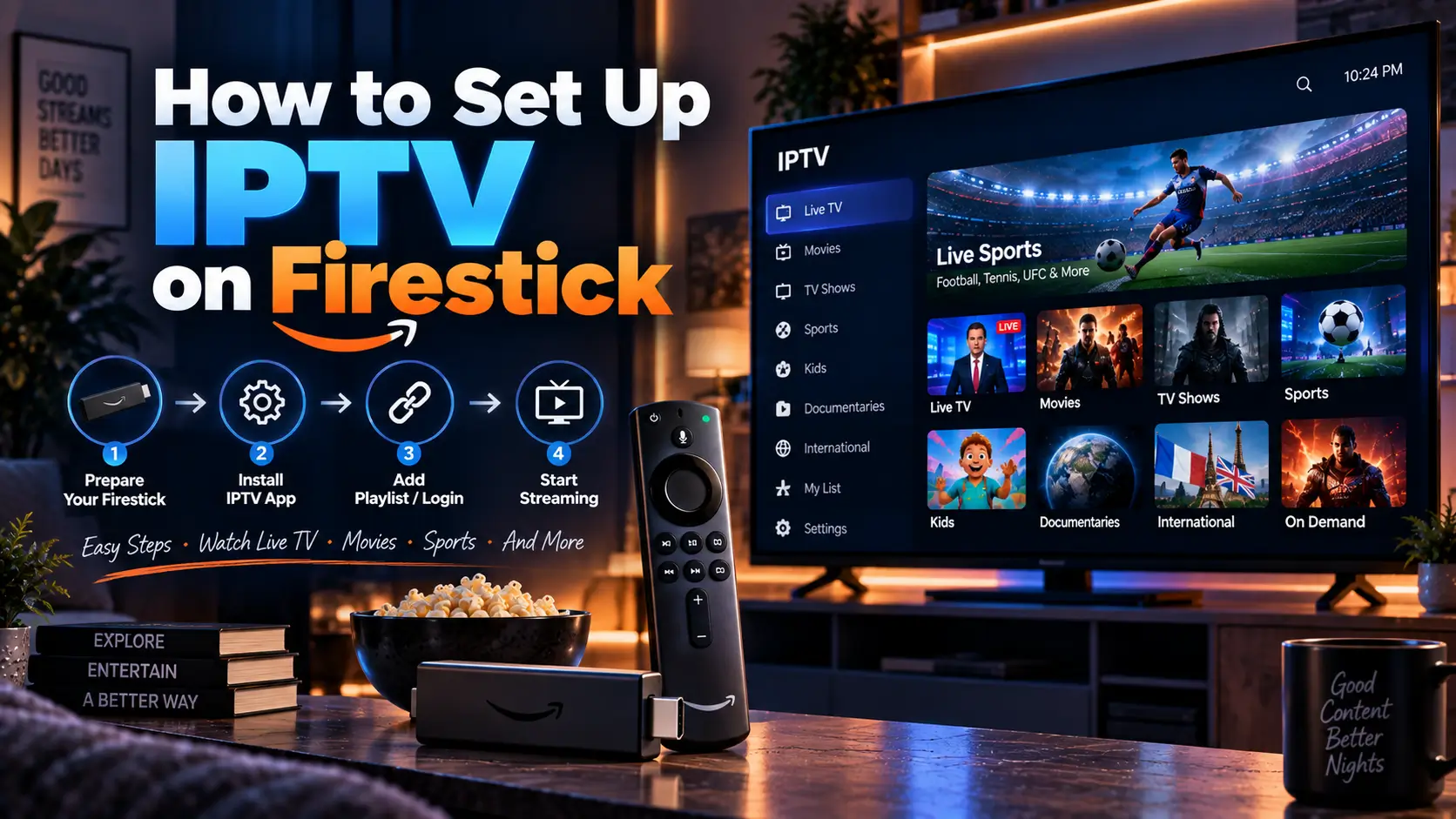
How to Set Up IPTV on Firestick in 2026 (Step-by-Step Guide)

The Fire TV Stick is one of the easiest devices for IPTV because it connects directly to your TV and supports several popular IPTV player apps. In this guide, we’ll show you how to install IPTV on Firestick, add your subscription, test your channels, and fix the most common problems.
What You Need Before Installing IPTV
Before you start, have these four things ready. The basic setup can take around ten minutes if everything is working normally.
- Firestick: Any recent Fire TV Stick model can work, including Lite, 4K and 4K Max. Updating Fire OS first can prevent installation problems.
- Internet connection: Around 10 to 15 Mbps is suitable for HD, while 25 Mbps or more is recommended for 4K. Ethernet can provide a more stable connection for live sports.
- IPTV subscription details: You will normally receive either Xtream Codes details or an M3U playlist URL from your provider. If you are still choosing a service, see our tested and ranked IPTV subscriptions or consider the 3-month subscription.
- Downloader: The free Downloader app can be installed from the Amazon Appstore.
How to Install IPTV on Firestick Step by Step
Follow these five simple steps to install an IPTV player, add your subscription, and start watching channels on your Firestick.
Step 1: Enable Apps from Unknown Sources
From the Firestick home screen, go to Settings > My Fire TV > Developer Options. If Developer Options is not visible, go to Settings > My Fire TV > About and click the Fire TV Stick name seven times. Then open Developer Options, enable Apps from Unknown Sources, and confirm the warning.
Step 2: Install Downloader
Return to the Firestick home screen and select Find > Search. Search for Downloader, select the app with the orange icon, and click Get to install it. Open the app and allow the required permissions.
Step 3: Install an IPTV Player
Open Downloader and enter the direct APK download link for your chosen IPTV player. TiviMate, IPTV Smarters Pro, and GSE Smart IPTV are common options. Select Go, wait for the APK to download, and then select Install.
Step 4: Add Your IPTV Subscription
Open the IPTV player from Apps & Channels. Depending on your provider, you can normally log in using Xtream Codes with your username, password, and server URL, or add an M3U playlist URL. Enter the details exactly as provided by your IPTV provider.
Step 5: Test Channels and EPG
Open a few channels from different categories and check the video, audio, and channel switching. If the EPG is still loading, give it a few minutes to populate. Once several channels play normally, your Firestick IPTV setup is complete.
Which IPTV Player Should You Use on Firestick?
Your IPTV subscription provides the channels, while the player app is what you use to access them. Here are the main options covered in this guide.
| App | Cost | Install Method | Best For |
|---|---|---|---|
| TiviMate | Free, premium around $5/year | Downloader | EPG and TV-style interface |
| IPTV Smarters Pro | Free | Amazon Appstore | Quick setup |
| GSE Smart IPTV | Free | Downloader | Multiple playlists |
| VLC for Fire | Free | Amazon Appstore | Simple M3U playback |
For users who want a traditional TV-style interface with an EPG, TiviMate is a popular choice. IPTV Smarters Pro is another convenient option because it can be installed directly from the Amazon Appstore.
Why Does Downloader Only Show a URL Box?
If Downloader opens with a single URL field, that is normal. Downloader is designed to fetch files from direct links rather than work like an app store.
If you enter a valid APK link and nothing happens, try these fixes:
- Update Fire OS: Go to Settings > My Fire TV > About > Check for Updates.
- Free storage: Remove apps you no longer use from the Applications menu.
- Check permissions: Open Downloader’s permissions and make sure required storage access is enabled.
- Clear cache: Clear Downloader’s cache, reopen the app and try again.
- Check the APK link: A broken or expired download URL can also cause the download to fail.
Common Firestick IPTV Problems and Fixes
| Problem | Possible Cause | What to Try |
|---|---|---|
| Constant buffering | Slow or congested connection | Run a speed test, try 5GHz Wi-Fi or Ethernet |
| Connection error | Incorrect or expired login details | Re-enter the username, password and server URL |
| App crashes | Cache or outdated app | Clear cache/data or reinstall the player |
| Channels freeze | Connection or provider issues | Try Ethernet and test another channel |
| Empty EPG | Guide data still loading | Wait a few minutes or refresh the EPG |
Do You Need a VPN for IPTV on Firestick?
A VPN is not required to install or set up IPTV. However, some users choose one for privacy or when they experience connection issues that may be related to their ISP.
If you use IPTV while travelling, a VPN may also help with certain region-related access issues. Whether it makes a difference depends on your internet provider, location and the IPTV service you use.
Is IPTV Legal on Firestick?
IPTV is a technology for delivering television over the internet, so installing an IPTV player on a Firestick is not inherently illegal. The important question is whether the provider has the necessary rights to distribute the content it offers.
Before subscribing, check the provider’s licensing information, pricing and customer support. You can also see our providers that meet this bar and review our provider reviews.
Frequently Asked Questions
A first-time setup can take around ten minutes. After Downloader and your IPTV player are installed, adding another playlist is much quicker.
No. IPTV players can be installed through supported Firestick methods such as the Downloader app. This does not require modifying or jailbreaking the device.
Around 10 to 15 Mbps can be enough for HD streaming, while 25 Mbps or more is recommended for 4K. A stable connection is especially important for live sports.
TiviMate is a popular choice for its EPG and TV-style interface. IPTV Smarters Pro is convenient for users who want an app available directly through the Amazon Appstore.
Xtream Codes normally uses a username, password and server URL. An M3U setup uses a playlist URL. Your IPTV provider should tell you which format to use.
That is normal. Downloader is designed to fetch files from direct URLs. If a valid link does not work, update Fire OS, clear the Downloader cache and check its permissions.
No. A VPN is optional and may be useful for privacy or certain connection and travel situations.
One Comment